


This page was last revised for version 5.1.0.
Seeded Tracing allows for anchoring/constraining tracing algorithms around key locations (machine learning predictions, soma locations, neurite endpoints, manual annotations, etc.). A seed is a 3D point that carries a position, a confidence score, and a few optional attributes (radius, type, source, channel, frame). Seeds are overlaid on the image using a dedicated renderer, and do not affect other overlaid objects like paths or ROIs. Common sources of seeds include:
- Deep-learning detectors that output candidate soma/endpoint coordinates (see Machine Learning)
- Labels/segmentation images e.g., from cellpose, Stardist, Labkit, or TWS, where each label/connected component yields one seed (e.g., cellpose masks can be used to specify the soma locations when autotracing multiple cells)
- ROIs e.g., generated from ImageJ routines (area and line ROIs are reduced to representative points)
- Tabular data (CSV) exported from external tools or scripts
Seeded Tracing Assistant
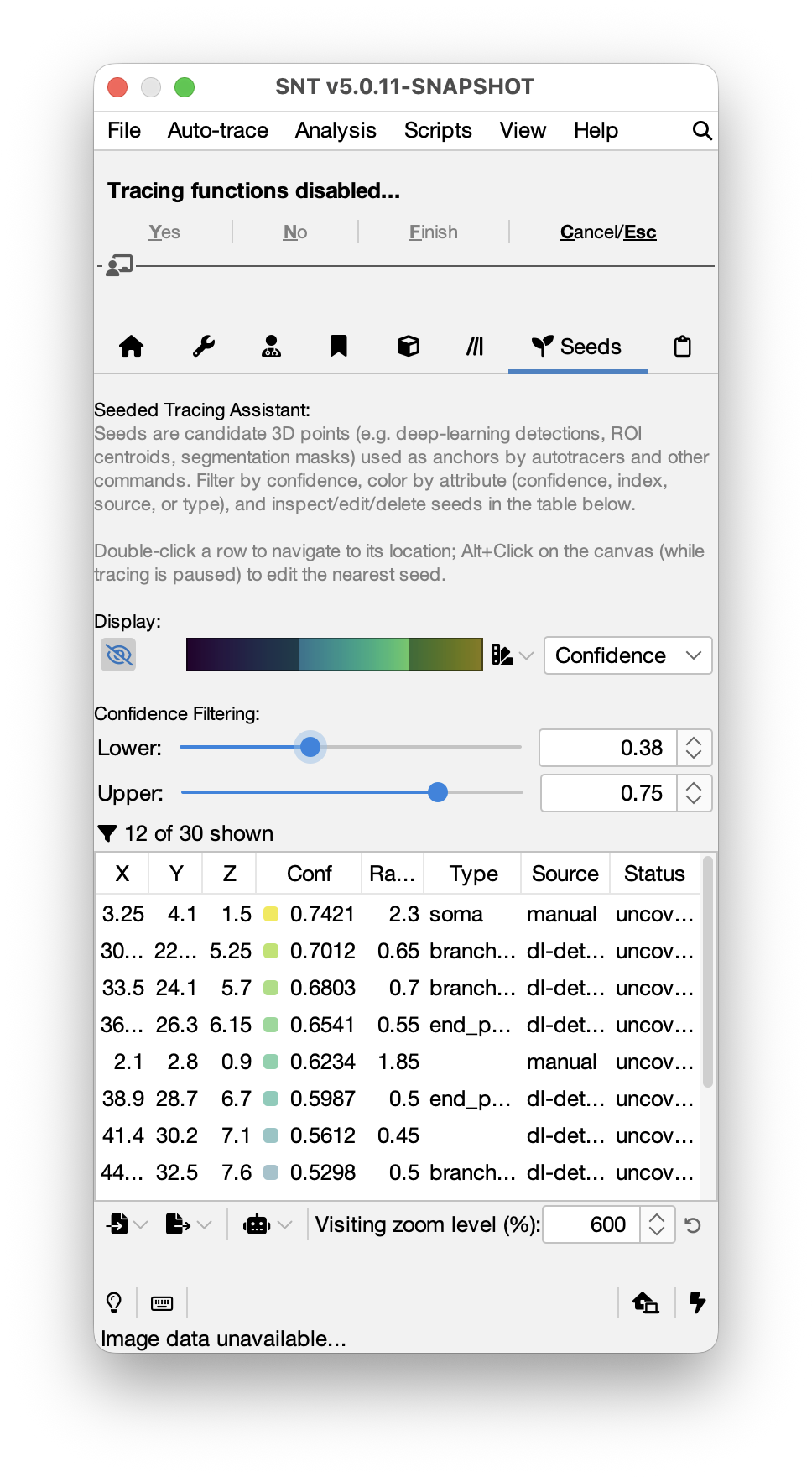
The Seeded Tracing Assistant is one of the main tabs in the Main Dialog and manages seeds. It is organized into four sections: a display toolbar, a confidence filter, a table of all loaded seeds, and a bottom toolbar for import, export, and autotrace actions.
Display toolbar
Controls how seeds are rendered on the tracing canvas, and includes:
- Show/hide seeds toggle button for the visibility of the whole seed overlay
- Color table controls set the lookup table (LUT), transparency, and the Color mode that drives the LUT mapping:
- Confidence: LUT sampled by the seed’s confidence within the active filter window
- Index: One distinct LUT slot per seed. This allows seeds to be rendered with unique colors under the Distinct/Glasbey lookup table
- Type/Source: Seeds are color-coded by type or source
Confidence Filtering
Two sliders set the inclusive \([low, high]\) confidence range. Seeds outside the range are hidden in both the canvas overlay and the table view; they remain in the underlying data and can be brought back by widening the range. The label beneath the sliders reports how many seeds are currently being filtered.
Seeds Table
Each row lists a seed. Selecting rows in the table also selects the corresponding seeds on the canvas (and vice versa). The table is organized as follows:
| Column | Meaning |
|---|---|
| X, Y, Z | Position in physical (calibrated) coordinates |
| Confidence | Score in \([0, 1]\). Drives the color mapping and the confidence-range filter |
| Radius | Optional sphere radius (physical units). Zero for point-only seeds |
| Type | Free-form category (e.g., soma, endpoint, waypoint) |
| Source | Where this seed came from (e.g., roi, labels-image:cellpose.tif) |
| Status | Coverage indicator (see below). Only present when SNT has tracing data |
 Double Click a row to navigate the canvas to that seed (channel/frame are honored when set; otherwise the active C/T is used). The Visiting zoom level spinner on the bottom toolbar controls the zoom level applied during the go-to
 Right Click for selection and editing controls. Choose Detach to move the table into its own window for a larger working area
- Sort by clicking column headers; the confidence filter survives across sorts
When tracing is paused, ⌥ Alt + Left Click on a seed marker to edit it.
Importing Seeds
From CSV File
Import › From CSV File…
SNT reads a comma- or tab-separated table with a header row, with the following required columns (case-insensitive, whitespace-tolerant): x, y, z, confidence, radius. Optional columns include: channel, frame, type, source. Defaults are applied when absent.
NB: Voxel-indexed inputs can be converted to physical (spatially-calibrated) location at import time using the image’s spacing
From Labels/Masks Image
Import › From Labels/Masks Image…
The program will parse a labels/mask image (produced e.g., by cellpose, Stardist, Labkit or TWS), and extract one seed per non-zero label. For each label, SNT computes:
- Centroid in physical coordinates
- Radius from the sphere whose volume equals the label’s total volume: \(r = \sqrt[3]{\frac{3V}{4\pi}}\)
- Confidence linearly interpolated between minConfidence (smallest label) and \(1.0\) (largest). In the case of e.g., a cellpose mask: the label with the smallest volume would be assigned the lowest confidence, the largest, the highest confidence
NB: If the chosen image is a binary mask, one-seed-per-label would collapse the whole foreground into a single seed. SNT detects this case and offers to run a connected-components analysis first (8-connectivity in 2D, 26-connectivity in 3D), label each distinct object, and proceed with the labeled image.
From ROIs
Import › From ROI Manager…
SNT will parse all the ROIs stored in the ROI Manager, using the following criteria:
- Area ROIs (oval, polygon, rectangle, freehand, traced): centroid as position; radius from the matched-area disk: \(r = \sqrt{\frac{A}{\pi}}\))
- Line ROIs (straight): midpoint as position; radius is half the path length. Polylines / freelines: vertex centroid; radius is half the summed segment length
- Point ROIs: each contained point becomes its own seed (without radius)
- Other geometries (angle, composite): bounds-center position, no radius
NB: Channel and frame come from the ROI’s hyperstack position when set, otherwise from the image’s active C/T. When importing ROIs, it is possible to set their seeds type and confidence value (default 1.0).
From Workspace
Import › From Workspace…
This option loads a previously-exported seeds.csv directly from the current SNT session directory. Useful for quickly restoring seeds across SNT restarts.
Exporting Seeds
To CSV File
Export › To CSV File…
This option exports all seeds to a CSV file with the same column layout used by the importer.
To ROI Manager
Export › To ROI Manager…
Converts seeds to ImageJ ROIs. Seeds with set radius become circles of diameter \(2r\); seeds without radius become point ROIs. By default, selected seeds in the table are exported; if no rows are selected, all seeds are converted. Note that Seed → ROI conversion is lossy since ROIs have no awareness of confidence, type, or source.
To Workspace
Export › To Workspace…
Writes all seeds to a seeds.csv file into the current session directory. The counterpart From Workspace reloads from the same location.
Auto-tracing From Seeds
Seeds can drive automated tracing in different ways, accessible through the auto-trace dropdown on the bottom toolbar. The naming convention pairs the algorithmic role with its biological interpretation: Roots → Somata; Endpoints → Tips; _Waypoints → Path Attractors. All tracing commands inherit the paramaters documented under Grayscale/ Segmented -image autotracing: Only the seed-related parameters and the role the seeds play differ.
Seeds as Roots / Somata
Run Auto-Tracers › Grayscale Image (One Tree per Seed)…
Each filtered seed becomes the root of its own auto-trace; the soma-detection strategy of the autotraced is bypassed because the seed is the root. The command iterates one tracer run per seed and aggregates the resulting trees into a forest: one tree per seed. Failures (unreachable seeds, seeds in background, etc.) are logged to the Console but don’t abort the run.
The seed source filter (Visible/All/Selection only) and type filter allow you to restrict the per-seed loop to a subset. When invoked from rows selected, the source filter is pre-targeted to Selection only.
Seeds as Endpoints / Tips
Run Auto-Tracers › Grayscale Image (Single Cell)…
In this modality filtered seeds become tip targets. The autotracer runs detection from the soma exactly once, then extracts the shortest path from each tip back to the root via the parent-pointer field. This is equivalent to the A* shortest-path tracing that SNT uses for interactive endpoint clicking, but batched over the entire seed set. The output is one tree connecting the soma to every reachable tip; tips that fall outside the foreground or outside the image bounds are logged and skipped.
Since seeded tips are by definition the desired endpoints, auto-traces do not perform any hierarchical pruning.
Seeds as Waypoints / Path Attractors
Run Auto-Tracers › Grayscale Image (Single Cell, Constrained)…
In this modality filtered seeds act as soft attractors: the cost map used by the auto-tracer is locally biased toward each waypoint voxel, so the resulting tree preferentially routes paths through (or near) the seeds. The root-to-waypoint paths are then protected from the standard pruning passes, ensuring the biased branches survive into the final tree.
The prompt exposes three bias controls:
-
Bias source: From confidence (default: each seed’s confidence value scales its attraction), From radius (radius normalized across the waypoint set), or Uniform (fixed factor)
-
Bias strength: overall multiplier in
[0, 1]. The default0.9means a confidence-1 seed is pulled almost all the way to a zero-cost voxel -
Bias sphere radius (voxels): spatial extent of the bias around each waypoint. A small sphere (2–3 voxels) is usually enough; larger values may create phantom attractors at the bias boundary in low-contrast images

The bias is a hint, not a hard constraint. If the surrounding terrain provides a much cheaper path that bypasses the waypoint, the trace can still detour around it. For stricter “must visit this point” semantics, use the Tips command instead.
Seeds as a Review Tool
In this modality, seeds are converted into Review locations and sent to the Curation Assistant for inspection. Useful for quality assessment of existing reconstructions, and for closing the loop with QC-classifier training data: each location can be tagged accept / reject / unsure and exported as labels for the next training round.
Scripting
The seed overlay is accessible from scripts via snt.getSeedOverlay().
The same operations available in the GUI (add, remove, filter, change colors, run autotracers with seeds in different roles) can be performed programmatically.