


This page was last revised for version 5.1.0.
Big Data Support
SNTv5 implemented preliminary support for big data: images too large to fit in CPU/GPU memory (BDV XML/HDF5, N5, and OME-Zarr/OME-NGFF containers) can be opened virtually and browsed or reconstructed without ever loading the full volume. Most of this support is provided through Big Data Viewer and Big Volume Viewer. Tracing on streamed images is handled by SNT Stream, which is the page to read once data is loaded. The following operations are currently supported:
| Operation | Status | Comments |
|---|---|---|
| Manual and semi-automated tracing | Supported (experimental)1 | Multi-dimensional images have not been thoroughly tested |
| Automated tracing | Supported (experimental) | See Auto-tracing1,2 |
| Tracing along way-points | Supported | |
| Path optimization | Supported | See Re-trace With A* |
| 3D Visualization: Interactive re-slicing browser | Supported via BigDataViewer | |
| 3D Visualization: Interactive volume viewer | Supported via BigVolumeViewer and sciview | Includes Slab View for restricting rendering to a thin, adjustable region of the volume |
| Stream-specific workflows | Supported (experimental) | Materialized crops, channel unmixing, and Quick Connect |
| Multidimensional operations | Limited support | Tracing handles one active channel/frame at a time for performance reasons. Commands that require exposing all channels/frames to be available at once may require data crops |
1For collaborative tracing, please use HortaCloud: This is SNT’s development team recommended tool for tracing Terabyte-size datasets in a collaborative environment
2See PySNT
Getting Started
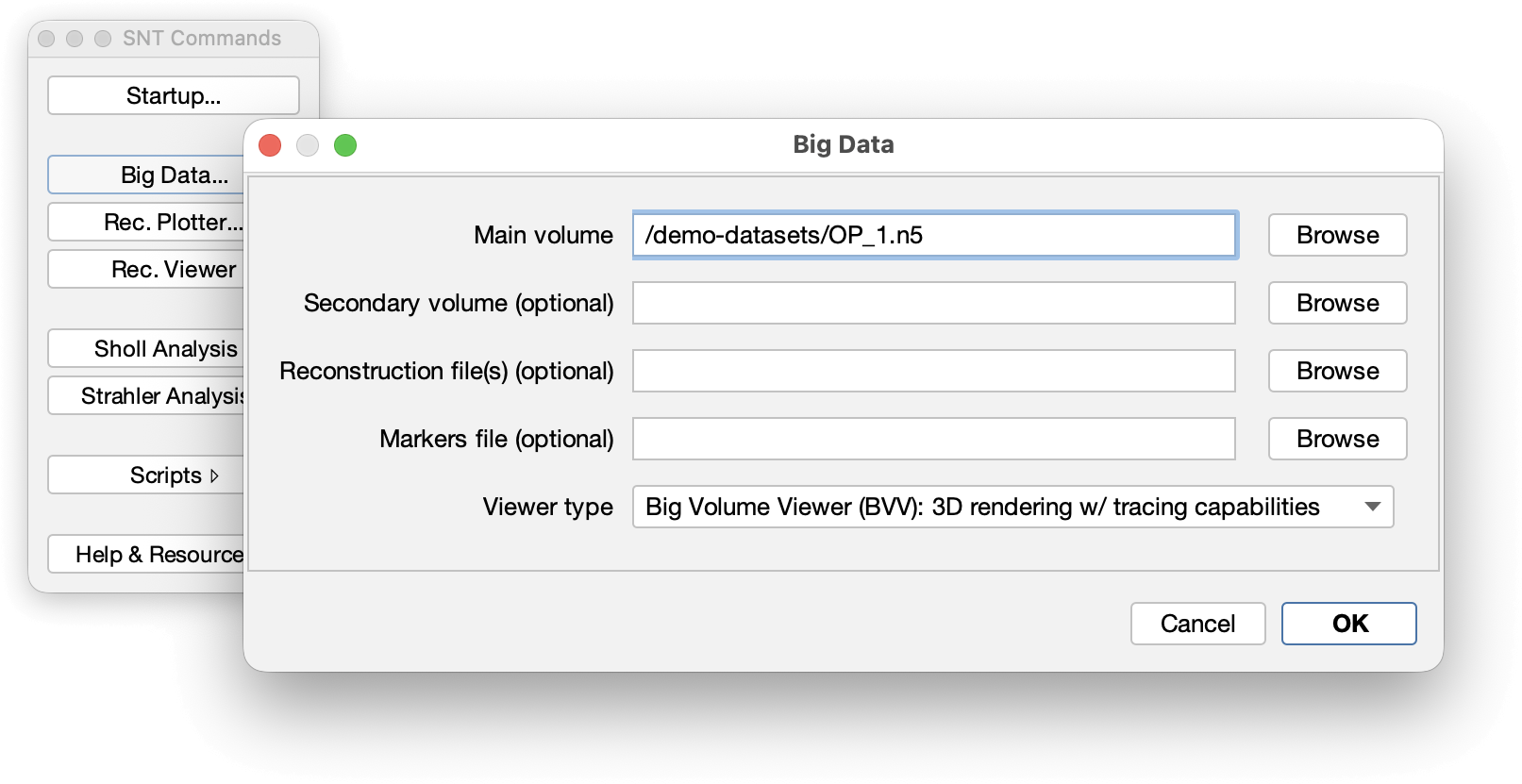
Choose Big Data… from the Shortcuts Window. In the prompt you can specify:
-
Main volume: The local path or remote URL to the primary image volume. See Supported File Formats for the formats that are directly supported, and for what happens if the volume is not a multi-resolution pyramid
-
Secondary volume: Optional. The local path or remote URL to a second image volume. Useful for loading a processed version of the main volume, or a secondary channel saved as a separate file
-
Reconstruction file(s): Optional. Either a single file (TRACES, SWC, JSON, Neurolucida XML), or a folder/.zip archive of several such files. Coordinates are assumed to be properly scaled: use the Import commands if an offset/scaling factor is needed. Reconstructions can also be imported later when tracing is enabled
-
Markers file: Optional. A CSV file containing bookmarked locations. Markers can also be imported later on
-
Seeds file: Optional. A CSV file with candidate tracing seeds. Requires Enable tracing (SNT Stream)
-
Viewer type: Either Big Data Viewer (BDV), an interactive re-slicing browser, or Big Volume Viewer (BVV), a 3D volume renderer. The main differences are:
Big Volume Viewer (BVV) Big Data Viewer (BDV) Display 3D volume rendering Interactive reslicing Hardware Discrete graphics card recommended No GPU needed Slab view Available N/A Channel unmixing Computed per slab Live Choose BVV for sparsely labeled data, modern hardware, and a fast disk or network connection. Choose BDV for dense, feature-rich images, modest hardware, or slow connections.
-
Enable tracing (SNT Stream): If checked, the viewer becomes the main tracing canvas (see SNT Stream). If not, a plain, lightweight viewer is opened with no SNT session attached
-
Load Remote Demo: Pre-fills all fields with a remote demo (marmoset neurons, OME-Zarr, with autotracings and soma markers, using BVV with tracing enabled)

All inputs can be local paths or remote URLs. Only Main volume is mandatory.
Limitations and Idiosyncrasies
- One channel/frame at a time: for performance reasons, one channel/frame is streamed for tracing at once. Commands that require all channels/frames available simultaneously (e.g., Multispectral Refinement) require materialized regions.
- Fixed search algorithm: the A* search algorithm is used for interactive tracing; the alternate NBA*/Fast Marching options available for in-core images may not be offered in Stream mode
- Cached image statistics: Access to cost-function tuning and image-statistics options remains available. However, since Compute Now For Whole Image scans the entire streamed dataset once, it can be slow depending on dataset size and network/disk speed. Use Compute Real-Time (the default) instead: It recalculates local statistics as you trace new regions.
- 3D Scene recentering on click: whether/how the view recenters as you place tracing points is configurable from the toolbar’s options menu (Never / Adaptive / Always). Adaptive is the recommended default for streamed data: it skips recentering for clicks that already land close to the focal plane, and briefly gates subsequent clicks after a recenter fires, giving tile streaming time to catch up
- Path fitting and automated tracing: Supported the same way as for in-core images; see Auto-tracing and Path optimization
Slab View
Slab View restricts BVV’s rendering to a thin, adjustable region of the volume, making it easier to inspect internal structure in dense or large datasets without having to rotate away obstructing tissue. Also, it may reduce data fetched from remote sources, depending on BVV’s internal caching behavior. It is a general rendering feature, available in Scene Controls whenever a BVV canvas is open, even outside active SNT Stream tracing sessions.
- Align the view to one of the three canonical planes (XY, XZ, or ZY) and toggle Slab View. The canonical plane gives the slab an initial axis to work from: once active, the view can be freely rotated
- Set the slab’s Thickness with the spinner, and move it through the volume with the Position slider (or its spinner). Both are in calibrated units
- Toggle Slab Paths to hide paths outside the slab. This also improves performance on large datasets. Equivalently, Slab Annotations, in the toolbar of the Bookmark Manager, restricts the markers to the slab. Slab Paths’ on/off state is remembered as a preference across Slab View activations; Slab Annotations resets each time
Slab View switches itself off if the view no longer intersects the slab, and when the view is reset. It is also required by channel unmixing of multi-resolution data.
Supported File Formats
Big volume viewer and Big data viewer are at the core of Big-data support. Standard formats (TIFF, and anything readable via Bio-Formats) are loaded as regular in-memory volumes, with an option to downsample automatically if a volume exceeds the GPU’s 3D texture limits. Imaris (.ims) files are supported via an automatically generated BDV-XML sidecar written next to the original file.
For genuinely large datasets, BDV XML/HDF5, N5, and OME-Zarr containers are opened virtually: data is streamed from disk in blocks as needed. N5 and Zarr containers are read directly, with no XML sidecar required. Remote data can be also be loaded using URLs.
Non-pyramidal and Oversized Volumes
BVV’s 3D renderer requires a multi-resolution pyramid, and a single GPU texture has size limits. If the Main volume does not satisfy these and BVV is chosen, SNT prompts you for how to proceed:
- Non-pyramidal Zarr/N5: Choose Build Pyramid to have SNT compute the coarser levels on demand (volumes that fit in memory are first copied locally, which may take a while for remote datasets)
- Image too large for a single GPU texture: This happens when a dimension exceeds the 3D texture limit of your graphics card, or when the volume has too many voxels per channel. You can choose between:
- Downsample: Shrinks the image so that it fits. Opens quickly, but fine detail is lost
- Load at full resolution: Loads every voxel into memory as a tiled pyramid. Requires substantial memory, and is a rendering only: it cannot be used for tracing
- Convert to multi-resolution OME-Zarr: Writes an OME-Zarr folder next to the original image and opens it. May take several minutes, but the result is streamed from disk, so it opens quickly and needs little memory
See Also
- SNT Stream: Tracing on streamed data, differences from in-core tracing, channel unmixing, materialized crops, and editing
- Profiling SNT: Monitoring latencies and performance to fine-tune big-data loading
- Key Shortcuts: Shortcuts for both traditional and streamed canvases