


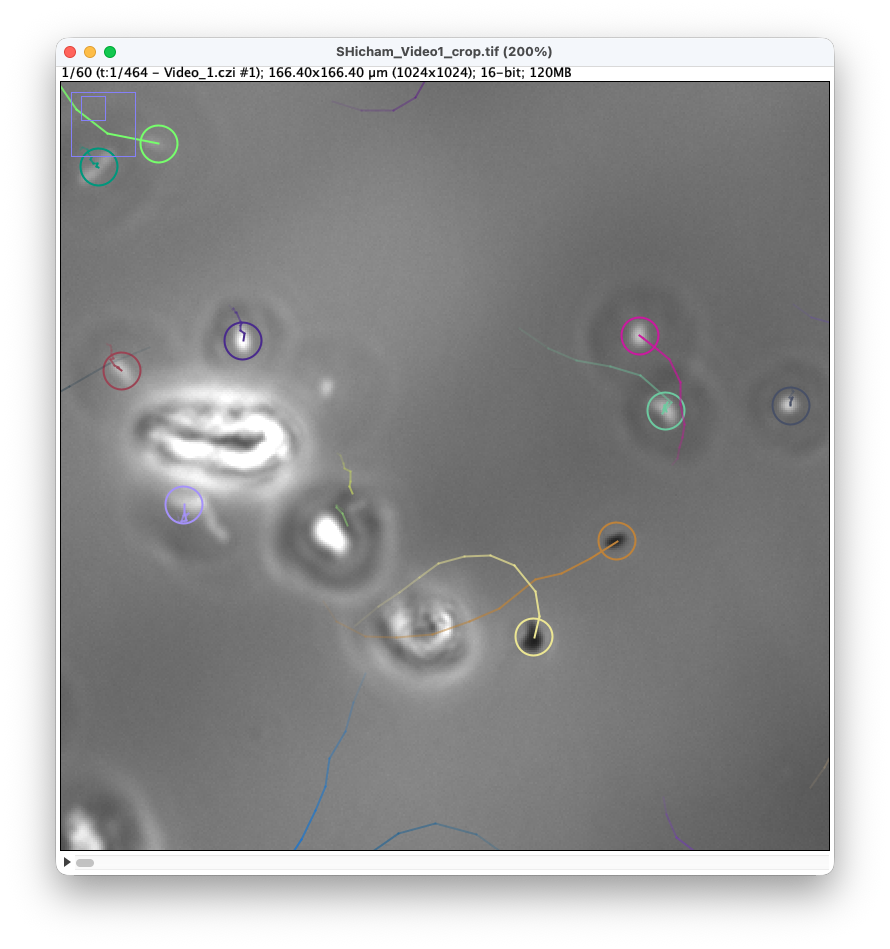
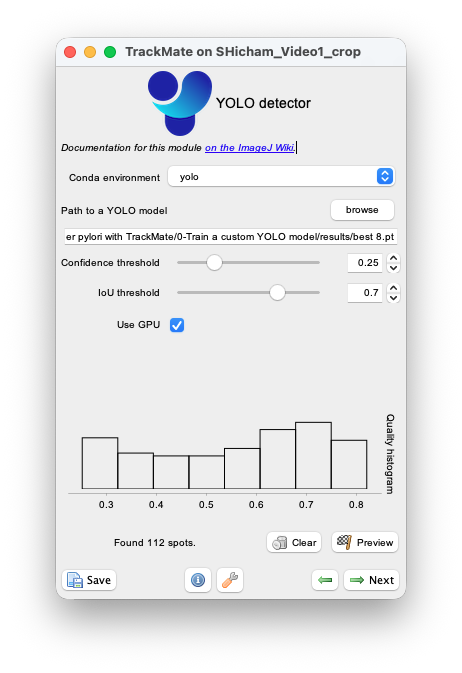
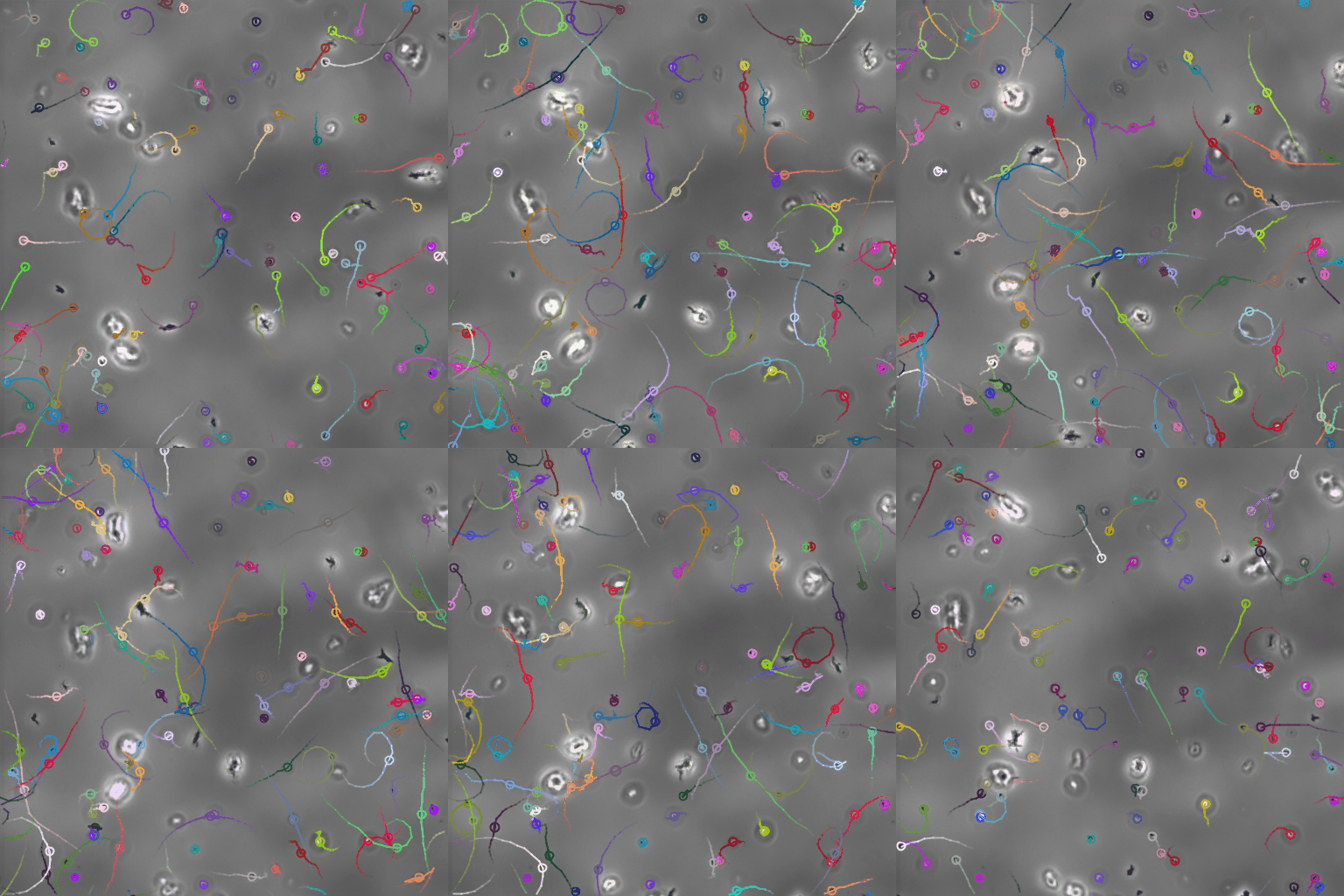
This page describes a detector module for TrackMate that relies on YOLO, an AI-based detection algorithm, popular for natural images. It is not included in the core of TrackMate and must be installed via its own update site. It also requires YOLO to be installed on your system and working independently.
If you use this detector for your research, please cite the YOLO webiste
Jocher, G., Qiu, J., & Chaurasia, A. (2023). Ultralytics YOLO (Version 8.0.0) [Computer software]. https://github.com/ultralytics/ultralytics
Installation
We need to subscribe to an extra update site in Fiji, and have a working installation of cellpose on your system.
TrackMate-YOLO update site
In Fiji, go to Help › Update…. Update and restart Fiji until it is up-to-date. Then go to the update menu once more, and click on the Manage update sites button, at the bottom-left of the updater window. A new window containing all the known update sites will appear. Click on the TrackMate-YOLO check box and restart Fiji one more time.
YOLO
This step requires you to have a working conda installation, like for any of the Python tools integrated in TrackMate. We recommend miniforge.
For YOLO specifically, we copy below the installation instruction from the YOLO GitHub repo
conda create --name yolo python=3.10
conda activate yolo
pip install ultralytics
Once this is done, still in the same terminal, test that YOLO was properly installed with e.g.:
❯ yolo version
8.3.168
TrackMate conda configuration
If you have not done it yet, you need to configure the TrackMate conda path in Fiji.