

This tool runs a per-frame segmentation model that predicts, for every frame of every trajectory, the local anomalous exponent α, the diffusion coefficient D (shown on a logarithmic scale, due to its wide range of values) and the diffusive state — immobile, confined, free diffusion, or directed. It then detects change points to split each trajectory into homogeneous segments, each with its own α, D and diffusive state (see ML models for how the default model computes them; it gives immobile segments α = 0). The window has four tabs: Visualization, D vs α, Segment Stats and Diffusive state.

Saving data. Per-frame predictions and per-segment statistics can be exported as csv files from the Visualization tab (see below). The D vs α, Segment Stats and Diffusive state tabs have a Save plot button that exports the plot, with all its panels, as a vector image (svg).
Units. Each tab has a Units button to choose the time and space units (see Units). D and segment lengths are shown in the chosen units, named in the D axis labels of the D vs α and Segment Stats tabs and in the csv headers; the log₁₀(D) axis of the Visualization tab does not repeat the unit.
Visualization
A 4 × 4 grid of prediction plots, one per trajectory. Each plot shows the per-frame predictions for one trajectory:
- Two lines showcasing α (red, right axis, range [0, 2]) and log₁₀(D) (blue, left axis, auto-scaled).
- A coloured strip showing the predicted diffusive state, with colour code: Immobile, Confined, Free diffusion and Directed.
For α and D, two layers are overlaid:
- The raw per-frame prediction, whose opacity is controlled by the Raw α/D slider.
- The segment step-line, i.e. the value of that variable for each detected segment, toggled independently with α_seg / D_seg.
The CP toggle shows/hides the dashed vertical lines marking the detected change points; the State toggle shows/hides the diffusive-state strip.
Tools:
- Sample random 16 picks 16 random trajectories; Choose trajectories opens a popup to enter specific
TRACK_IDs. - Save raw preds. exports every trajectory’s per-frame α, D and diffusive state to a
csv(experiment, track_id, frame, alpha, D [unit], state);frameis theFRAMEof the input file andstateis the per-frame diffusive state, coded as0 = immobile, 1 = confined, 2 = free diffusion, 3 = directed. - Save segments exports the detected segments, with starting frame, length, α, D, and state (
experiment, track_id, segment, start_frame, length, alpha, D [unit], state);lengthis the number of frames;start_frameis theFRAMEof the input file at which the segment starts.
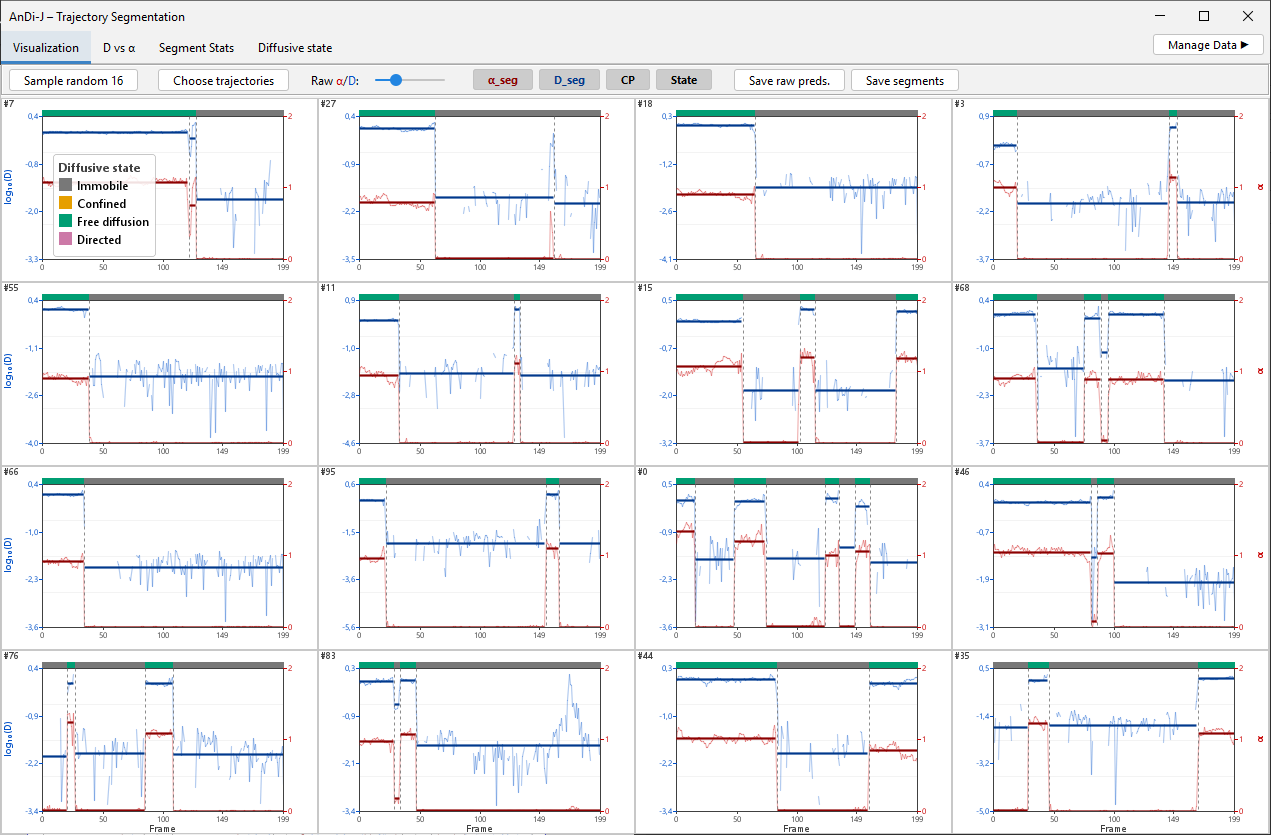
Visualization grid with the raw prediction and segment step-line overlaid.
D vs α
This tab shows a 2-D density heatmap of (α, D). The dropdown at the start of the toolbar chooses whether each frame or each segment counts once; the colour scale, the side plots and the legend count the same. Each selected experiment is overlaid as its own semi-transparent colour.
Show immobile (off by default): immobile segments, and in frame mode the frames of immobile segments, are left out of the plot, so that immobile data at α ≈ 0 do not hide the distribution of the moving ones. The legend has one row per experiment: its number of frames or segments and how many of them are immobile, marked (hidden) while they are left out. While immobile data is hidden, the checkbox has a soft orange highlight, which pulses for a few seconds when the tab is opened or the plot updates; once the box has been ticked, it is no longer highlighted until the next Perform Analysis. Immobile segments keep their predicted D: the apparent diffusion coefficient of the remaining motion, typically localization noise.
Log D axis (on by default): D on a logarithmic axis with log-spaced bins, as in the Trajectory Analysis D vs α tab; untick it for a linear axis.
The side plots show the marginal histograms + KDEs along the top (α) and right (D) edges. Drag the plot’s top or right border to resize either marginal strip.
Tools:
- Hovering the heatmap shows the (α, D) value under the cursor.
- Rubber-band Zoom, Pan, Reset view; a draggable legend.
- Experiment multi-select in the side panel.
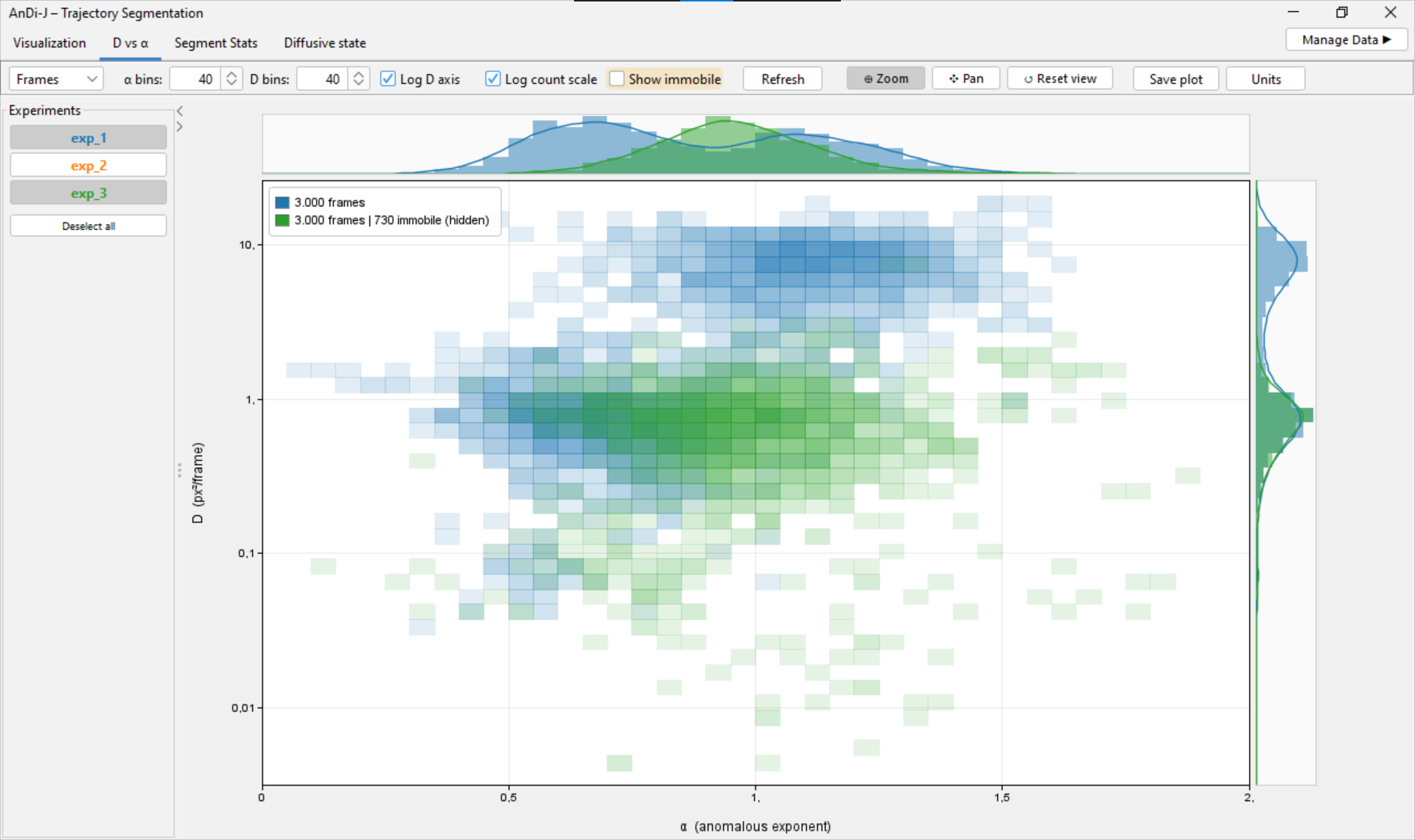
D vs α density heatmap of the predictions.
Segment Stats
This tab shows the temporal statistics of the identified segments, together with their relation to the extracted α and D.
Plots:
- Segment-length histogram — the distribution of segment lengths separated per experiment.
- Segment length vs α and Segment length vs D — 2-D density heatmaps, overlaid per experiment, each with a side marginal KDE of the y variable (α on the left, D on the right).
Tools:
- Length bins, α bins and D bins are set independently; all three plots share the segment-length x axis.
- Log D axis (on by default): the Segment length vs D plot shows D on a logarithmic axis with log-spaced bins; untick it for a linear axis.
- Show immobile (off by default): the Segment length vs α and Segment length vs D plots leave out immobile segments; each gives the number of segments (N, immobile included) and, below, how many are immobile and their share. The length histogram always includes them. The checkbox is highlighted as in the D vs α tab.
- Rubber-band Zoom, Pan, Reset view on every plot.
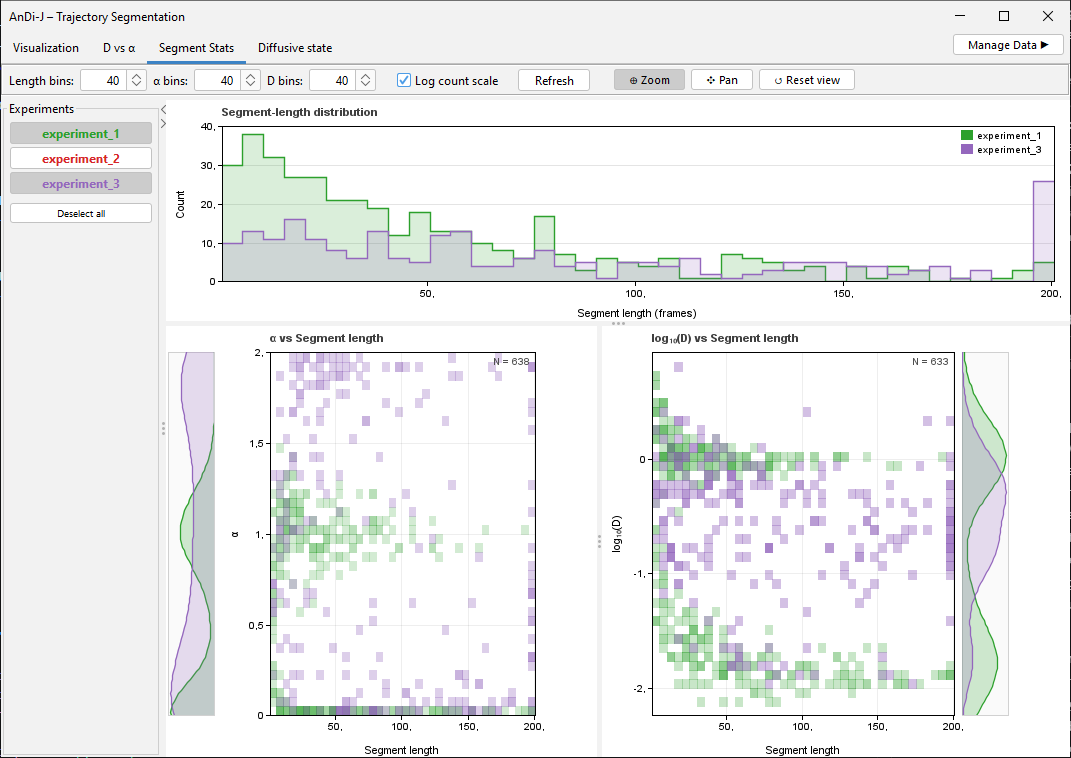
Segment Stats tab.
Diffusive state
This tab gathers the diffusive-state analysis. It contains two plots:
- Top — a grouped bar chart of the percentage of segments in each diffusive state, per experiment.
- Bottom — the segment-length distribution, one colour-coded line per diffusive state, pooled over the selected experiments. A Normalize (%) checkbox switches between raw segment counts and each state’s distribution normalised to its own total (useful to compare the shape of the length distributions regardless of how many segments each state has).
The right-hand column mirrors that split: it lets you select the Experiments as well as which Diffusive states are shown in the segment-length plot. A state with no segments draws a flat line at zero.
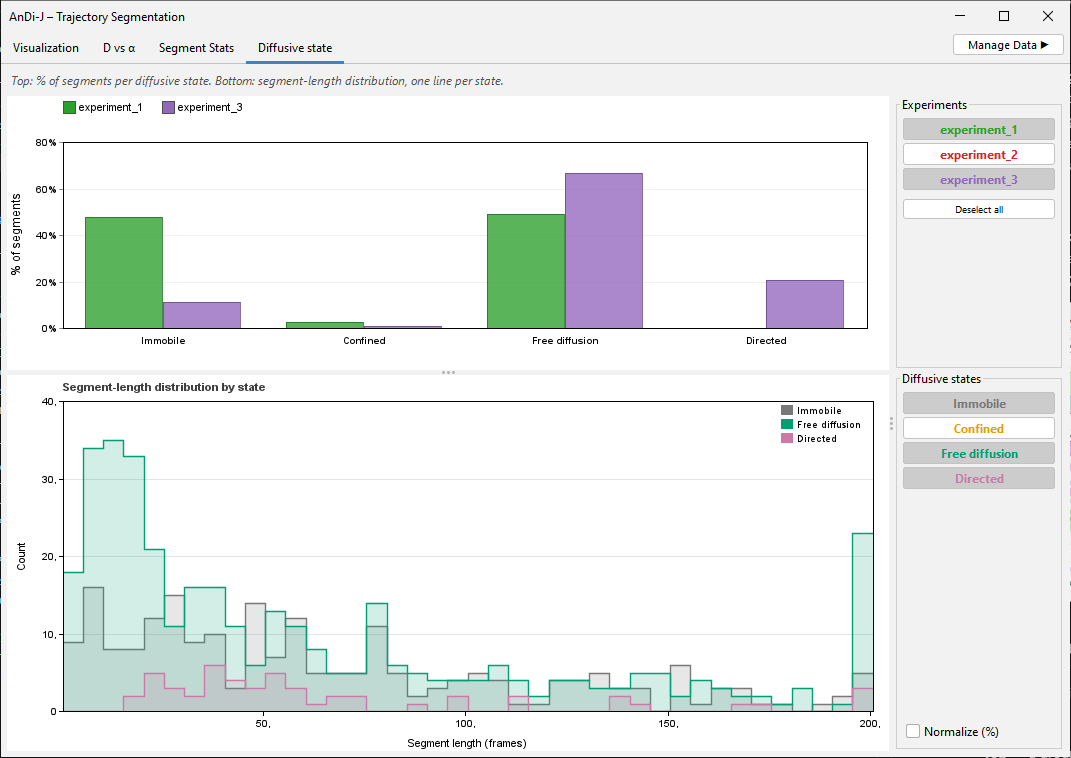
Diffusive state tab.