

Semi-automatic segmentation/annotation of 3D objects
This plugin install and run nnInteractive on a stack (3D) in Fiji. nnInteractive segments objects in 3D based on prompts placed by the user.
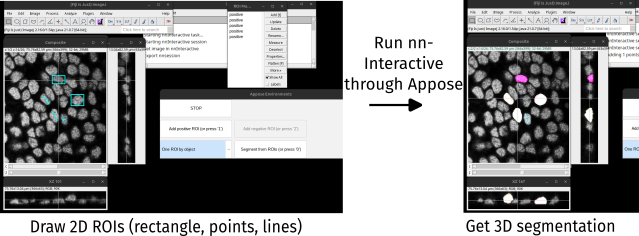
This plugin is based on Appose, that automatically install python environment and allows python script execution with shared objects with Fiji.
Installation
You can install the plugin for the unliste update site Appose-Playground:
- In Fiji, go to
Help>Update... - Select
Manage Update Sitesin the window that opens. - Click
Add unliste update site, name itAppose-Playgroundand write its addresshttps://sites.imagej.net/Appose-Playground. - Select the nnInterappose
.jarfile to install only this plugin, or keep all proposed plugins. - Press
Apply changesand restart Fiji when it’s done.

You should have a recent version of Fiji, based on Java 21 or more. Download a new version here (Latest downloads column) if you’re current installation is too old.
Usage
Image dimensions
The image must be a 3D (Z slices or T frames) image. It does not support 2D image or 3D+time stacks. If the image as several channels, only the currently active one will be used.
Starting the plugin
From Fiji:
- Open the image that you want to process.
- Launch the plugin:
Plugins>Annotation>nnInteractive - Wait for the initialization of the plugin and the network. It will install if necessary a new python environment, activates it and then initialize nnInteractive on your image.
- When it is ready, an interface will appear to let you select some options and a new image
Compositewill apear, with your image as first chanel, and the resulting segmentations will be added to the second chanel.
Annotate object(s)
Once the plugin is initialized, you can quickly annotate/segment object(s) in 3D by placing prompts (some cues to indicate the object of interest) then letting nnInteractive defines the precise contour in 3D.
Two modes are possible in this plugin: either you want to segment only one object, and place several prompts for the same object to define it better, or you want to select several objects at once.
- Choose:
One ROI by object: to do multiple objects at the same time by placing only one prompt (ROI) by object.All ROIs for one object: to do only object at a time with as many prompts (ROIs) as you want for a finer segmentation. Prompts can be positive (object is here) or negative (no object here).
- Draw prompts and add them to the RoiManager: press
1to add positive prompts,2to add negative prompts.
Prompts
See nnInteractive for what prompts are possible and their usage.
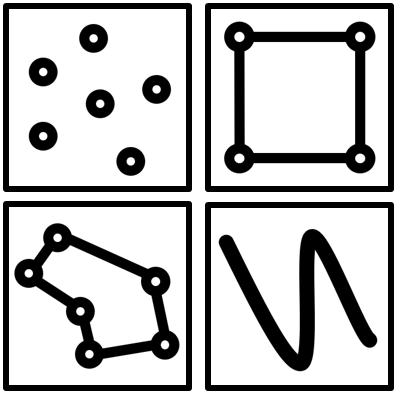
In this Fiji plugin, currently possible options to annotate are (other ROIs might be added later, you can also file an issue to ask for one to be added):
- Rectangle ROI -> nnInteractive bounding boxes
- Point ROI -> nnInteractive point seed
- Line ROI -> nnInteractive scribble. In the Fiji side, it can be any type of line ROI (single line, segmented line, or freehand line).
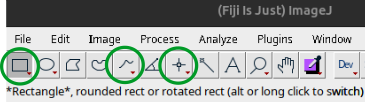
If you want the prompt to be a positive interaction (see nnInteractive documentation), press 1 to add the current ROI to the ROIManager as a positive one.
For a negative prompt (relevant in All ROIs for one object mode), press 2 to add the current selection to the RoiManager as a negative one.
Orthogonal views
You can also place prompts on the two orthogonal views (XZ and YZ stacks) that can be open on the side of the image. This allows for more flexibility in the 3D annotations.
The shortcuts are the same: select the stack (XZ or YZ) and the slice where you want to add a prompt, draw the ROI and press 1 for positive annotation and 2 for a negative one.
Segment
When you have added all the prompts for this iteration, click the button Segment from ROIs, or press 0 and wait for the process to finish.
The new label(s) will be added in the second chanel of the Composite image.
By default, all the prompts (ROIs) that you placed are removed after the computation, so that you can start another iteration (segmentation another object).
However, when segmenting complex objects, it might be necessary to add iteratively prompts, try to segment, remove the result and add prompts to improve it.
For this, select the option keep ROIs so that the prompts will not be removed.
You can still remove them manually in the ROIManager afterwards.
Issue
If you encountered a problem using the plugin, or to ask for a new feature, please fill an issue on the github repository.Please give as many details as possible.
You can also post a new question on the imagesc forum, mentionning that the question is related to nnInterappose plugin.
To delete a segmented object when the segmentation is not satisfaisante, press Control and `left-click on the object.